In this tutorial I am explaining the steps to configure Belkin Wireless N router F5D8233-4 by accessing the web based setup page. Though this tutorial is for a specific Belkin router model, you can use the same procedure to setup most of Belkin Router models. This tutorial is for those who want to setup their router manually without running the setup CD from Belkin. If you want to configure your Belkin router by running the setup CD ,click on the link below for instructions.
How to Configure Belkin wireless router by running setup CD
In this page you can see instructions to run the CD and setup Belkin wireless router. However, to set advance settings on your router it is better configure router by accessing the web based setup page and set the settings manually.
STEPS TO CONFIGURE BELKIN WIRELESS N ROUTER
Before accessing the web based setup page connect Wireless Router to the computer as shown in the image. Here Ethernet port (LAN Port) of the computer is connected to the LAN port of Belkin router using an Ethernet cable. It is like:
- LAN Port of Modem is Connected to Internet Port of Belkin Router
- LAN Port of Belkin Router is connected to LAN port of Computer
- Belkin Router is Switched On
- Computer is Switched on

Now unplug the power cable from the modem. Let the Belkin router and the computer powered on. Steps to setup Belkin Router by accessing the setup page are:
PS: It is very important that the modem must be switched off while configuring the Belkin Router
1. Access Belkin setup page
To access Belkin's web based setup page type 192.168.2.1 on the address bar of the browser.
The default login IP address of most of Belkin Wireless routers is 192.168.2.1

2.Enter the Router Password
By default there is no password set for the Belkin router and you just simply click submit button to log on to Belkin router setup page.
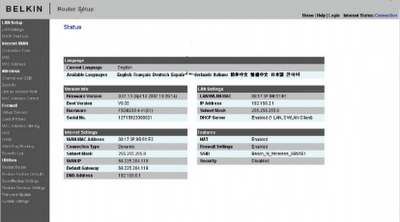
3. Setup the connection type ( Internet WAN)
Click on Internet WAN and select the connection type you want.
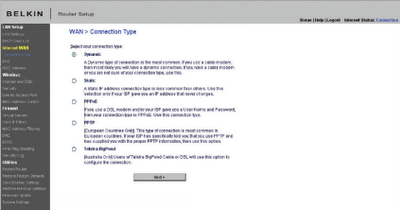
Configure Belkin Router for Cable Modem
If you have Cable Internet connection, you should select Dynamic IP option. In most cases you may need to type the host name provided by Cable Internet Service Provider. In addition to this to work Belkin Router with cable modem, you may need to clone the MAC address of your computer using the link/button change MAC address.
Setup Belkin Router for DSL Modem
To configure DSL Internet connection you should select PPPoE as the connection type.
Here you should enter the user name and password provided by your Internet Service Provider. After entering the details you should click on save settings. Now your Belkin router is configured in PPPoE. In the same way your can setup your Belkin router for static IP and PPTP.
4. Change the LAN settings in Belkin Router
You can change the router IP address and you can enable or disable the DHCP function on the Belkin router using this window. By default belkin router IP address is 192.168.2.1 but you can change it to any other valid IP address.
5. Setup Wireless feature in Belkin Router
To edit the wireless settings, click on Wireless tab in the setup page. You can edit the Wireless network name and wireless channel here.
Wireless name (SSID) is the name of your wireless network. The most recommended wireless channel is 6. You can use wireless channel 1 and 11 too.
6. Enable Wireless Security in Belkin
To enable wireless security on Belkin router click on security under wireless tab and follow the instructions in the link below.
enable wireless security in Belkin wireless router
You should update Belkin Router Firmware
It is very important that you should update Belkin router firmware after configuring the router. To know how to update the firmware click on the link below.
How to Update Firmware in Belkin Router
You can select various security settings from the list provided here. To enable a secured wireless network follow the instructions given in the link.
Protect your wireless network from hackers
There are some other points you must care after configuring the router. One of them is to ensure the safety of the wireless network. It is a nice practice to enable MAC address filtering in Belkin Router to avoid any unauthorized access to your wireless network. To learn how to enable MAC address filter in Belkin wireless router, please follow the link below.
How to enable MAC Address Filter in Belkin router
Some users says they were able to access Internet before adding Belkin router in their network. After installing the router, they are not able to go online. If you face such an issue after setup Belkin Router in your network, follow the link below to fix the issue.
I cannot go online after installing router


Source : www.corenetworkz.com


